Showing posts with label Trending. Show all posts
Showing posts with label Trending. Show all posts
Saturday, March 12, 2016
ASUS Vivobook E200HA review: Like a CHROMEBOOK!
Do you think it's possible to get a usable fully-fledged Windows 10 laptop for under £200 (~$280)? That's what ASUS aims to deliver with its entry-level Vivobook E200HA, which will set you back just £179.99 (inc. VAT). We found it online for as little as £160.
When you consider that the 11.6-inch Acer Chromebook R11 that we recently reviewed edges over £200, you might well be tempted by a laptop that does all the cloud stuff as well as offering on-device capability. But surely there are some pitfalls?
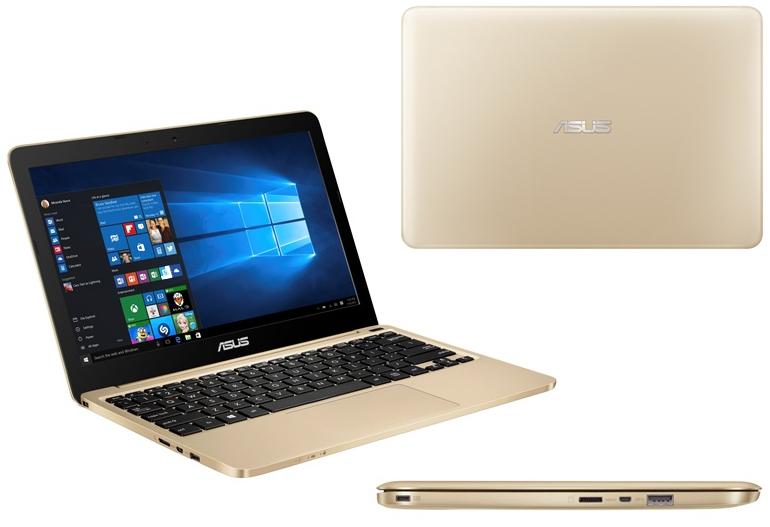
The Vivobook E200HA is a small machine, its 11.6-inch screen sitting in a chassis that measures 28.6cm by 19.33cm by 1.75cm. It's the kind of computer you can drop into a messenger bag or small rucksack with ease, and you'll barely notice its 0.98kg weight.
If you care about keeping your laptop looking good then the Vivobook E200HA will need some sort of sleeve, as its plastic shell is easily scratched. But that won't add much weight or bulk.
The chassis comes in a range of colours. Ours was a sort of pinky bronze that ASUS calls 'gold', but we've also seen it in blue and white.
The screen's large-ish bezel makes it look a little bit lost, but neither that nor the fact that it's not touch sensitive is a big problem. The moderate 1,366-by-768 resolution (135 pixels per inch) resolution is only to be expected at this price point.
The display's 16:9 aspect ratio makes this laptop well suited to watching movies -- in theory at least. In practice it's disappointing: colours are quite washed out despite ASUS's Splendid technology, which apparently automatically fine-tunes the display depending on what you're viewing to deliver the best colour support.
Sound quality isn't that good either. Volume goes high enough, but there's very little bass on offer. Oddly, the volume also had a tendency to restart at a much higher level than we'd set it when waking up from sleep.

The keyboard is rather better, stretching across the full width of the chassis, with a double-width enter key and a half-height Fn key row. The keys are reasonably responsive with a full 1.6mm of travel, and we didn't experience any problems typing.
The touchpad is relatively large, and recognises both cursor movement and gestures well. The embedded buttons are also efficient, although single taps -- to relocate the cursor in text, for example -- were sometimes not recognised. Perhaps the touchpad didn't like our customary light touch, as it responded well to a more heavy-handed approach.
The processor is an Intel Atom Z8300 running at 1.44-1.84GHz, supported by 2GB of RAM. This quad-core Cherry Trail processor made its debut about a year ago and is designed for entry-level/low-end Windows and Android devices. It's certainly not made for heavy-duty workloads. If you plan to restrict yourself to web browsing, media streaming, email and document creation/editing you should be OK -- but don't expect to do too much of anything simultaneously.
In fact, the Vivobook E200HA is slow even at basic tasks. Files don't open particularly quickly, for example, and it took a couple of seconds for Windows File Explorer to recognise our USB stick.
You might be able to live with this, but there are other ways in which the processor displayed its lack of muscle. You won't want to have too many web pages open at the same time, for example -- and the more complex they are, the fewer the Vivobook E200HA will be able to handle.
To illustrate this we ran three simultaneous data streams through Microsoft Edge: continuous music videos; a live International Space Station feed with only occasional sound as astronauts communicated with ground control; and a soundless animation. Even with just these three streams to contend with, video was unacceptably jerky as we moved into and out of full-screen mode.
That said, the Vivobook E200HA was perfectly happy writing direct to a Google Doc via the Edge browser at the same time. Occasionally the music video sound skipped a little, but the document had no trouble keeping up with our typing.
Although the Atom Z8300 with 2MB of RAM isn't great for complex multitasking, you should be able to run several basic tasks at once without too much trouble.
ASUS claims 13 hours of life for the 2-cell, 38Wh battery if you're playing video, rising to 14 hours for music and falling to 12 hours for web browsing.
We're not convinced. One of our longer continuous-use sessions was a four-hour period with the three video streams above running alongside Google Docs. We dipped in and out of other apps during this period, and there were occasions when the laptop went to sleep.
During this period the battery ran down from 96 percent to 56 percent. Extrapolating a loss of 10 percent charge per hour, we might expect ten hours of life for this kind of activity. That would still get you through a day, but it's well short of ASUS's claim.
Our review unit came with Windows 10 Home preinstalled, but Windows 10 Pro is also available. You also get a year's free access to Microsoft's Office 365. There's dual-band 802.11a/b/g/n/ac wi-fi and Bluetooth 4.1 for wireless connectivity, and a VGA webcam for video calling (remember that VGA is only 640 by 480 pixels).
Our review unit had just just 32GB of internal eMMC storage, and fresh out of the box only 8GB was free. Check the storage on your smartphone and you may find it has more.
You get 500TB of ASUS WebStorage for two years, and can use other cloud platforms as well as external physical storage. What's available in storage capacity is little different to what a Chromebook offers.
There are two USB ports, one of which is USB 3.0. Unfortunately the HDMI port is Micro-HDMI, and ASUS doesn't provide a converter. The only other connector is for your headset. Completing the minimal port/slot complement is a Micro-SD card slot.
Conclusion
ASUS has designed the Vivobook E200HA to meet a very challenging price point, and has made a fair stab at the task. Yes, the onboard storage is woeful and the processor can't cope with more than basic multitasking. The screen is somewhat lacklustre too. But the whole thing does hang together, albeit in a somewhat stuttering and frustrating way at times.
The Vivobook EH200A might find its level as a first computer or as a laptop that supplements tablet-only households. That said, if you are currently looking at Chromebooks, it's probably worth including this in your mix.
Whatever your reason for considering this laptop, don't simply be lured by the price: make sure you can live with its shortcomings.
2 in 1 Review: 2016 Dell XPS 12
I’ve been a regular user of the 2015 and 2016 model Dell XPS laptops – the XPS 13 and XPS 15, and have been very impressed with the overall performance, usability and build quality of these portable workhorses. So when I was given the opportunity to test out the smallest member of the XPS family, the XPS 12, I came in with pretty high expectations – and Dell has delivered yet again.

The XPS 12 is a 2-in-1 Windows 10 laptop/tablet which packs a 12.5″ IPS display in either 1080p (176 PPI) or 4K (352 PPI) resolution. My review unit showcases the 4K display, and it’s really spectacular, offering incredible sharpness, eye-popping brightness, rich colors, and a tiny bezel that lets it pack a bigger screen in a smaller space. The 4K display also offers a 100% color gamut, which is really great if you work on photos or design projects and want accurate images. If there’s any downside to the 4K display, it’s that you can expect substantially less battery runtime compared to the 1080p screen. If you plan on plugging in, this is a non-issue.
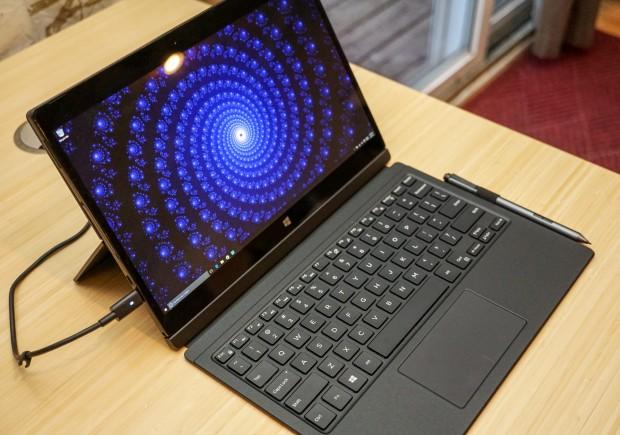
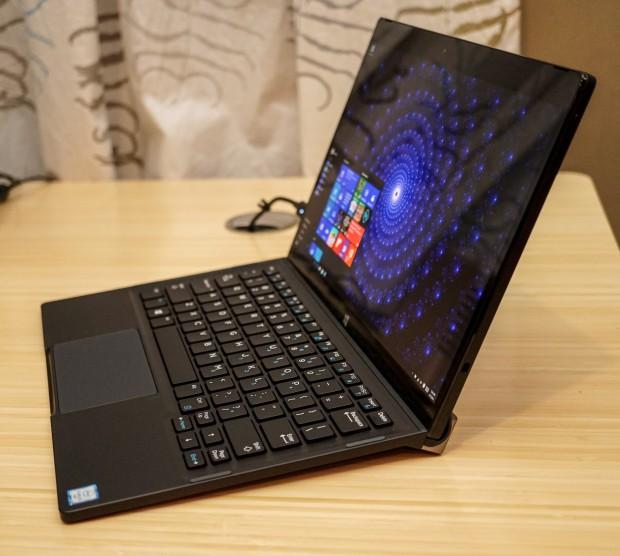
Like other XPS models, the system is clean and minimal in design, with a durable body made from magnesium alloy, coated with a soft touch paint to keep it from slipping out of your hand when used in tablet mode. When carried with its standard keyboard, the system weighs just 2.8 lb. With the Slim Keyboard, it’s 3.5 lb, and just 1.75 lb when used as a standalone tablet. In other words, this is a very lightweight system. Transitioning between laptop and tablet modes is seamless, and menus and taskbars even automatically adjust based on which mode you’re working in.

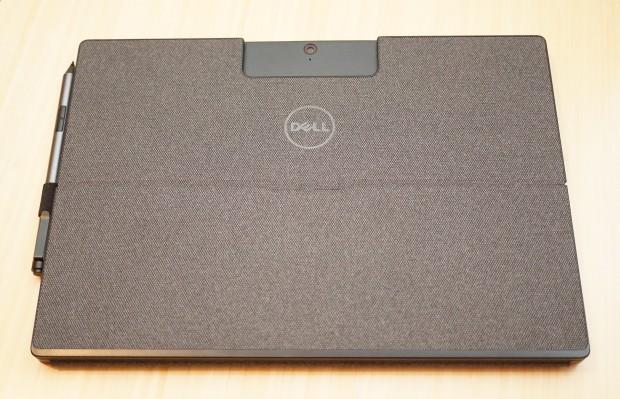
It comes with the Premier Magnetic Folio – a keyboard that has a fixed angle, a built-in stand and long-travel keys, along with a cloth-wrapped cover. The optional Slim Keyboard ($50 upcharge) is thinner and lighter, and has a fully adjustable kickstand, though the keys only have a 1.3mm key travel. To be honest, I didn’t notice the difference, and much preferred the flexibility of the Slim Keyboard, compared to the fixed angle of the stand on the standard model. There’s only one advantage I can see with the Premier Magnetic Folio – it can be used as a tablet stand for those times that you don’t need the keyboard.
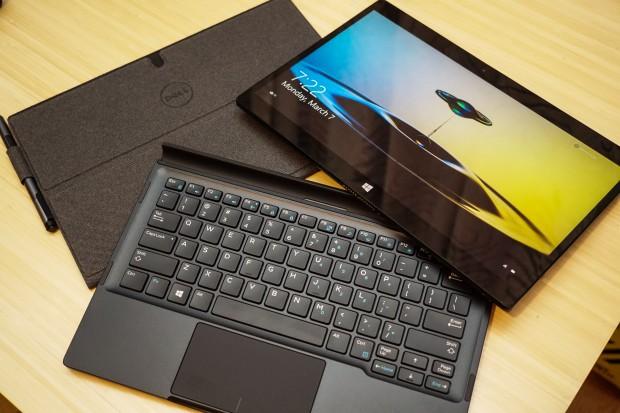
The other advantage off the Slim Keyboard is how the system folds up like a notepad, whereas you need to slide the tablet out of the stand and into the case section on the Premier Folio for transport.
Depending on your location on the planet, Dell offers four different CPUs, all of which are 6th-gen Intel Core m models, ranging from a 2.2 GHz Core m3-6Y30 up to a Core m7-6Y75, each with a 4M cache. These CPUs are a far cry from the slow Atom CPUs found in some netbooks and lightweights, offering impressive performance for productivity and day-to-day work. My Geekbench 3 scores for the XPS 12 with a Core m5-6Y54 were 2815 (single-core) and 4642 (multi-core). These scores were comparable to those I got from a full Core i5-5200U on last year’s XPS 13. Storage comes in the form of either a 128GB or 256GB SSD.
Connectivity is provided via two USB type-C connectors, which can be used to either connect external devices or as a charging port. Both ports also offer support for Thunderbolt 3 devices, which is great for connecting fast external storage devices or external displays. Dell also offers a couple of adapter options – a $75 dongle that adds HDMI, VGA, Ethernet and USB 3.0 ports, and the forthcoming WD15 dock which lets you connect up to five peripherals, power and an external display.
Battery life for the XPS 12 is rated at up to 8 hours of web browsing, and 6 hours, 52 hours of video playback on the 1080p display, while the 4K model takes a pretty big hit – 5 hours of web browsing, and 4 hours, 29 minutes of video playback. Keep in mind that those figures are based on running at a fairly dim brightness level. Real world, expect between 3 and 4 hours of battery life on the 4K model.
Since the XPS 12 works as a tablet as well as a laptop, Dell sells the Active Pen ($50), a stylus which offers on-screen writing using applications like Microsoft OneNote. It took a little hunting on the Dell website to find the requisite driver to get the pen to work, but once I did, it worked well. The pen feels good in the hand, there’s good palm rejection, and is precise and responsive, and it offers pressure sensitivity when used with the proper application – Bamboo Paper supports this out of the box.

Overall, the Dell XPS 12 is a very capable system for anyone who wants the flexibility of both a tablet and a laptop PC, without sacrificing speed. It performs well, and is lightweight, while still feeling substantial in construction. That said, I highly recommend spending the extra $50 on the Slim Keyboard option, as it makes transporting the system less clumsy, and provides much greater versatility in terms of screen angle.

U.S. Prices for the Dell XPS 12 start at $999.99 for the 1080p model with 128GB SSD, and $1299.99 for the 4K model with 256GB SSD. Each comes with 8GB of RAM.
[FTC Disclaimer: Technabob was provided with the hardware tested in this review by Dell at no cost. However, all reviews on Technabob are the unbiased opinions of our authors, and in no way represent the views of the product manufacturers represented here.]
Dell Inspiron 13 7000 (2016) Review: Business Minded
Dell Inspiron 13 7000 (2016) Review: Business Minded
The Dell Inspiron 13 7000 is more than just a well-rounded work laptop, thanks to its flexible 360-degree hinge that lets you use it like a tablet. In addition to having a sturdy 2-in-1 design, the 13-inch notebook offers long battery life, speedy performance and good looks. Commuters might be turned off by its relative heft, though, and its keyboard is a bit on the shallow side. So does the Inspiron 13 7000 ($449 to start, $749 as reviewed) belong in your work bag?

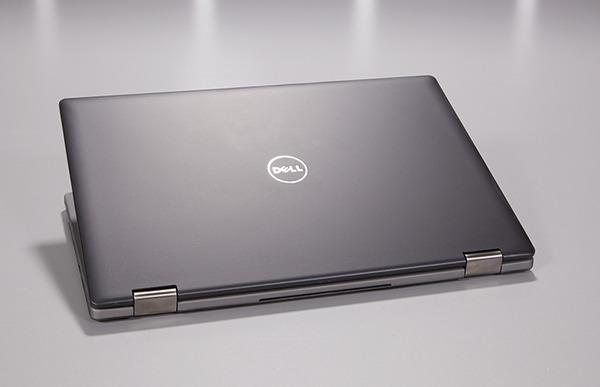
The Inspiron 13 7000 manages to look both stylish and professional at once. I especially like the soft-touch lid, which feels luxurious. The aluminum keyboard deck sports a slick, brushed-metal effect. Keep in mind that the brushed-metal deck is available only on the pricier Special Edition model, which starts at $749 and has a more premium design than the $459 standard model.

While the Inspiron 13 7000 isn't exactly heavy, commuters who need to carry their notebook between home and the office might want to opt for something lighter. The machine, which weighs 3.64 lbs., is noticeably heavier than smaller notebooks like Toshiba's 2.9-lb. Satellite Radius 12. Lenovo's 3.5-lb. Yoga 700 is also lighter, even though that machine has a larger, 14-inch display.
Among similar laptops, Dell's Inspiron 13 isn't the heaviest we’ve tested; that distinction belongs to the 4-lb. Acer Aspire R 14.
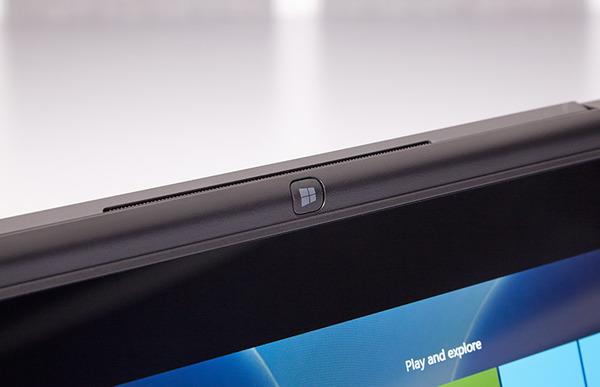
While the Inspiron 13's 360-degree hinge might sound like a gimmick, I think that most workers will find the 2-in-1 design genuinely useful. The notebook is a bit too large and heavy to be carried around like a tablet, but the intermediate modes are handy. Both the stand and tent modes can be used for showing off a presentation to a small group, or for using touch-screen apps in cramped quarters — on an airplane tray table, for instance.
Display

The Inspiron 13 7000 comes equipped with a 13.3-inch display that's a good size for daily productivity tasks. With a resolution of 1920 x 1080, the panel looks nice and sharp; it produces crisp text and clear images. I also appreciated the display's wide viewing angles; images didn't look washed out when I viewed the system slightly from the side.
The laptop's display has a glossy finish, which tends to attract reflections from windows and overhead office lights. For work, I'd prefer a notebook with a matte display that diminishes reflections.
Keyboard and trackpad

The Inspiron 13 7000's somewhat shallow keyboard gave me the feeling that I was bottoming out too quickly on each keystroke as I typed up this review. It offers about 1.2 millimeters of travel, which falls short of the 1.5 mm that we look for on a laptop computer. Deeper keyboards provide a more comfortable, desktoplike typing experience.
On the bright side, the Inspiron 13 7000's keys feel snappy, with plenty of feedback on each stroke, which mitigates the travel issue. Most users will probably think this keyboard feels fine.

The trackpad feels good, with a nice, smooth finish that allowed me to quickly and accurately position the mouse cursor. Gestures, including two-finger scrolling, were also responsive.
Battery life
The Inspiron 13 7000 should easily last through the end of the workday or survive a long business flight. The notebook ran for a very solid 8 hours and 15 minutes on our battery test, which simulates continuous Web browsing over Wi-Fi.
That beats the ultraportable notebook average of 8 hours and 10 minutes, and it's also longer than the runtimes for the Yoga 700 (7:03) and the Satellite Radius 12 (7:22). The Aspire R 14 edged out all rivals, though, running for 8 hours and 37 minutes on the same battery test.
Ports

You'll find a pretty standard selection of ports on the Inspiron 13 7000. The left edge has two USB 3.0 ports and an HDMI port for linking to monitors or projectors, as well as a lock slot for physically securing the laptop at your desk. The right edge adds a third USB 3.0 port and an SD card slot for expanding the notebook's internal storage.
Performance
The Inspiron 13 provides more than enough power to handle an average workload. Our review unit came outfitted with a 6th-generation Intel Core i5-6200U processor with 8GB of RAM, and it sped along smoothly during moderately heavy multitasking. I didn't notice any hiccups while I edited a large spreadsheet while streaming 1080p video, with about a dozen tabs open in my Firefox Web browser.
In our performance tests, the Dell was about on a par with rival notebooks. It scored a very solid 5,775 on the Geekbench 3 test, which measures overall performance. That's about as good as the Toshiba Satellite Radius (5,779) and the Lenovo Yoga 700 (5,855). Acer's Aspire R 14 was the speediest of the bunch, though, with a score of 6,266.
However, the Inspiron 13's hard drive could be a bit faster. It took longer to finish our file-transfer test than the Radius 12 and the Aspire R 14 did, though it slightly outpaced the Yoga 700.
Configurations
For this review, we took a look at the Special Edition model, which has a 6th-generation Intel Core i5-6200 processor with 8GB of RAM, 128GB of speedy solid-state drive (SSD) storage and a 1080p touch screen, all for $749. It also has a snazzy, brushed-aluminum keyboard deck, which other models lack. Overall, it's a well-rounded and reasonably affordable package for the average worker.
Dell also sells the Inspiron 13 7000 in a variety of other hardware configurations. The entry-level model costs $449 and comes with a low-power Pentium 3825U processor with 4GB of RAM; a 500GB, 5,400-rpm hard drive; and a 1366 x 768 touch display. For an additional $529, you can bump that up to a faster Intel Core i3 processor, and for a total of $749, you can get a Core i5 processor with 8GB of RAM and a 1080p touch display.
Bottom line
The Inspiron 13 7000 is a really-well-rounded work machine. I liked the notebook's appealing design, as well as its long battery life and solid performance. Plus, its flexible hybrid design is pretty useful.
Regardless, commuters who need to lug their laptop between home and the office might want to opt for a notebook such as the Toshiba Satellite Radius 12, which weighs a full pound less. Acer's Aspire R 14, which is slightly lighter and comes with a bigger display for $100 less, is another enticing option. Still, the Inspiron 13 7000 is a solid 2-in-1 laptop that will serve most workers very well.
SEE MORE: http://www.businessnewsdaily.com/8872-dell-inspiron-13-7000-business.html#sthash.xQT3826o.dpuf
Google unveils new Android 'N'
In a surprise unveiling, Google has given the world its first look at the next version of Android.
The yet-to-be-named Android update, codenamed "Android N," features a split-screen mode, improved notifications and better battery life. Google unveiled a preview version of Android N for developers this week.The new split-screen tool would catch Android up to Apple's iPad, Samsung and Windows, which all give customers the ability to view multiple apps on the same screen.
Google said it could allow a video-playing app to continue to run while a person opens a different app. For example, you could continue to watch a YouTube video while opening up your Gmail app to respond to an email.
Samsung, which makes Android phones and tablets, has long given customers the ability to run split-screen apps. But it was an add-on feature, so people who owned non-Samsung Android devices have been left out of the multi-window fun.
Notifications
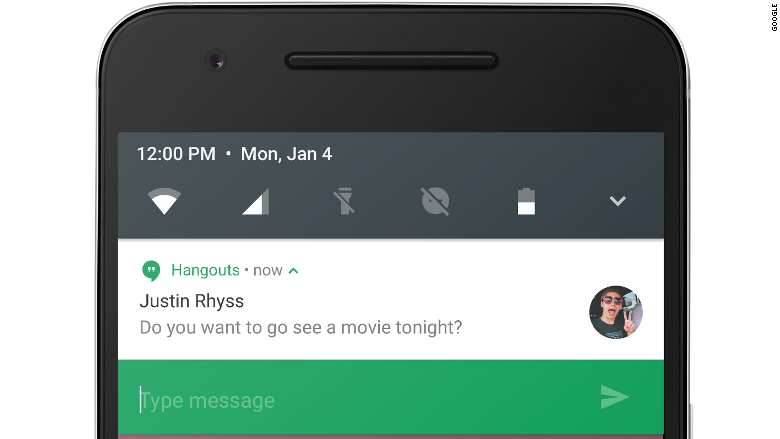
Android N will introduce notifications that customers can reply to inside the notification itself. So if you get a text message, you can hit "reply" right in the notification and start typing without opening up the messaging app.
Interactive notifications have been a staple of Android for years, although they've been limited to actions like play, pause or delete. Unlike iOS, Android largely hasn't allowed people to type anything into a notification. Google's Hangouts currently allows customers to reply from an Android notification, but that still requires a pop-up window. Android N will just expand the notification window a bit to include a text box.
Android N will also include "bundled notifications," which will keep all notifications for a single app in one line. Customers will be able to expand those notifications using a two-finger gesture or by tapping a new expansion button.
Battery efficiency
In the current version of Android, Google (GOOGL, Tech30) included a feature called "Doze," which put phones into a deep sleep when they were sitting on a table for a while.
Android N will take Doze a step further, putting phones to rest whenever the screen is off. Google also said that Android N will make background tasks more efficient and less taxing on the battery.
And more!
Google said Android N's new feature set isn't limited to those new bells and whistles. Google will continue to release new features as it builds them.
Typically, new Android releases are unveiled during Google I/O, the company's annual developer conference. This year's I/O is scheduled for May 18-20.
"We're doing something a little different this year by releasing the preview early... really early," Google said in a blog post.
Google noted that a super-early preview allows developers to weigh in much sooner, giving Google more time to incorporate app-makers' feedback. It follows Microsoft's nearly yearlong preview of Windows 10, allowing anyone to download it and submit suggestions along the way.
The next version of Android will be named after some tasty treat that starts with the letter "N." The current version is called Marshmallow.
SOURCE: http://money.cnn.com/2016/03/10/technology/android-n/
Samsung Galaxy S7 Edge's edge screen
Samsung added new features that take advantage of the curved screen; let's take a look.
That slick edge screen on the Samsung Galaxy S7 Edge is more than just a pretty design, it's functional, too.
Last year's Galaxy S6
Edge had just a few features to make use of the curved screen, but the
S7 ramps it up. The curved edges of the display make it feel like the
screen never really stops. The edges of the screen also act as an
additional place to show information in a way that doesn't interfere
with the rest of the screen.
We'll dive into everything Samsung added to the edge screen this year below and go hands-on with them in the video above.
Edge panels
The
edge screen gets far more shortcuts and tools with the S7 Edge. The
People edge, a menu of favorite contacts is still there, but it's joined
by the Apps edge menu, which shows your most frequently used apps and
the Tasks edge, where you can add shortcuts of things you do often with
your phone (such as taking a selfie or creating a new calendar event).
There
are also new panels of information from Yahoo News, Yahoo Sports, Yahoo
Finance, your calendar, weather and more. You can customize the Edge
screen in settings, removing panels you don't want and downloading new
ones from the Samsung app store.
Edge feed
Swipe a
finger back and forth along either edge when the screen is off to see
the Edge feed. It's a tiny display of helpful information, like missed
calls, messages, sports scores and news updates. You can swipe up and
down along the edge to move between feeds, which include Yahoo News,
Yahoo Finance stock information, and your step count from the built-in S
Health pedometer.
Edge lighting
Just like with
the Samsung Galaxy S6 Edge, the S7 Edge's screen will light up when
someone calls or texts you. When the phone is resting screen down, the
edge will glow when you get an incoming call or text. If the person
calling you is one of the contacts in your People edge the screen will
glow with whichever color you've assigned them -- either blue, green,
purple, yellow or orange.
Apple wireless charging

But there's a growing amount of evidence that this will change soon.
Bloomberg reported in January that Apple has been working on a wireless charging technology with partners that would allow its devices to siphon power from "further away from than the charging mats used with current smartphones."
A Morgan Stanley analyst note from February says the same thing: it expects wireless charging to be added to the iPhone in the next 1-2 years, based on industry experts.
Apple has filed a few patents describing wireless charging, and The Wall Street Journal reported that it was looking into "a new way of charging" back in 2012. Given Apple's tepid approach to wireless charging so far, it's unlikely that Apple is working on implementing the same tech that's currently on the market.
All signs point to one partner: Energous, a publicly traded company that's firmly in its R&D phase at the moment. It's come up with a system called WattUp that enables smartphones and other small gadgets to charge from as far as 15 feet away from a wireless transmitter.
Here's why so many people think Energous's wireless charging system is going to end up in Apple products:
Energous CEO keeps alluding to a "key strategic partner" that sounds a lot like Apple
In early 2015, Energous said that it had signed a deal with "one of the top five consumer electronics companies in the world." That narrows the possibility down to only a few companies: Apple, Samsung, Hewlett Packard, Microsoft, and Hitachi.During a conference call on Thursday, Energous' relationship with its "key strategic partner" kept coming up.
"The whole relationship and the internal development are really shrouded in secrecy. They’re compartmentalized even within our key strategic partner," Stephen Rizzone said. "There is an element of secrecy to them and so we really just can't speak to any component or any specific as it relates to the milestone or development."
But Rizzone did confirm that Energous continues to hit milestones for its #1 customer. "One path is to actively support our key strategic partner as the adoption process moves to their organization," Rizzone said. He believes Energous tech will be in consumer hands "late this year early next year."
Also key: whoever Energous is working for is going to help shepherd the company through the tricky FCC approval process. Apple's compliance team shepherds hundreds of products through the FCC.
It's the only long-range wireless charging technology ready to ship
https://youtu.be/if4hiu1tHto
 Apple and Energous are on the same standards group for designing wireless charging tests
Disruptive Tech Research analyst Louis Basenese said in a research note
that a compliance manager at Apple, Michael O'Dwyer, is on a standards
committee to develop standard ways to "test wireless power transfer
products."
As Basenese says, it's unlikely that Apple would be on such a committee unless it saw a scenario in which it would have to test a wireless charging product it makes. And guess who else is on that committee? Energous' director of regulatory compliance.
Additionally, an analysis of LinkedIn profiles finds multiple engineers who have moved from battery development at Apple to roles at Energous – one of whom wrote that she "specialized in major accounts."
Probably 2017
If Energous is Apple's wireless charging partner, it just gave a few major hints about when you can expect the technology to hit the market. It's sticking to its "late 2016" timeline for its technology to make it into consumer products, but it's the "mid-size and the full sized transmitters" that its key strategic partner is interested in.The "mini" transmitter is geared towards wearables and other smaller devices, according to Rizzone.
"They are more complex, they are going to take longer to both integrate into the products of our key strategic partners," Rizzone explained.
So while the evidence is stacking up that Apple may be working on wireless charging technology, it probably won't be ready in time for the iPhone 7 that's expected to come out late this year.
SOURCE: http://www.businessinsider.com/evidence-apple-is-working-on-wireless-charging-for-iphones-and-apple-watch-2016-3


